Users List
After a search has been made, the number of results will be shown in parentheses in the title bar of this section.
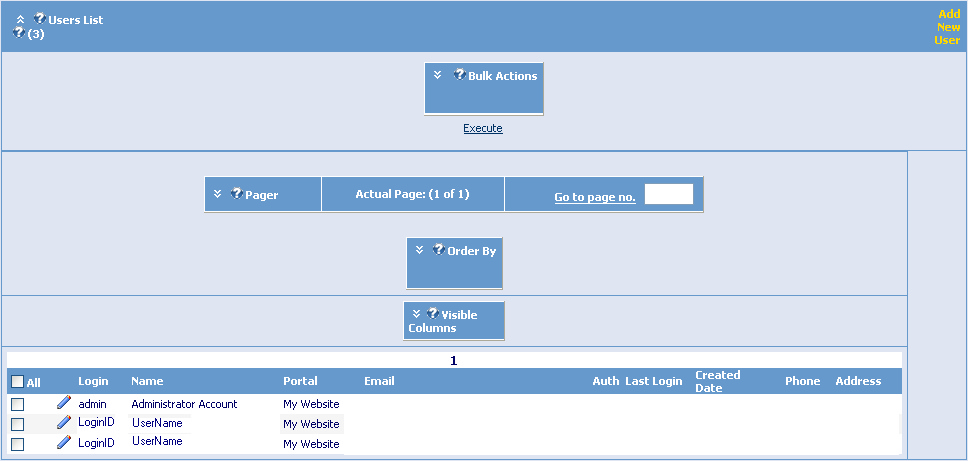
Bulk Actions
In this section, you can apply settings to a large amount of users. Scroll to the bottom of the module and mark the checkbox next to each user you would like to apply the settings to, then choose the settings and click ‘Execute’. Here you can add/remove/change existing roles for user(s), reset passwords, export user(s), set authorization, permanently delete user(s), and send account information. If you are logged in as a SuperUser, you will be able to choose from all added Portals.
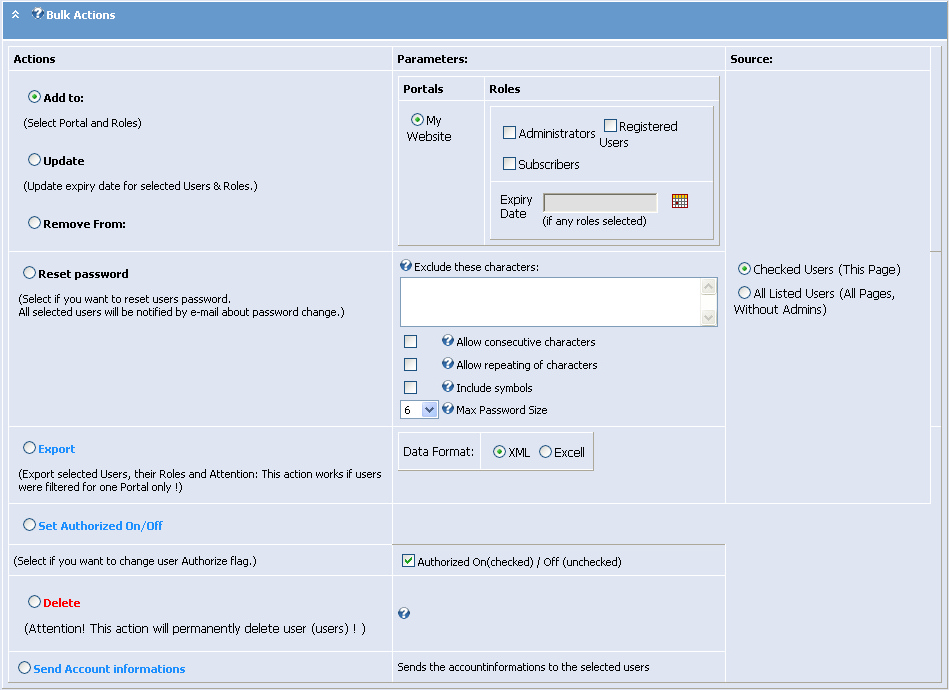
There are three different columns in the Bulk Actions table: Actions, Parameters, and Source.
Actions
This column contains the actions available to apply to the user(s) selected.
Parameters
This column contains the parameters of the action chosen.
Source
This section allows you to choose between applying the settings chosen to all users or only to the users selected. There are only two choices in this column: Checked Users (This Page) and All Listed Users (All Pages, Without Admins). If you are logged in as a SuperUser, you will see All Listed Users (All Pages) instead.
Execute
Click this link to perform the action(s) selected.
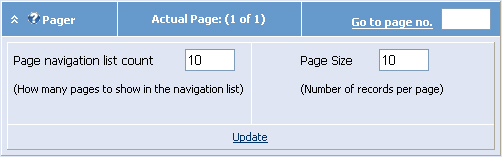
Pager
The section allows you to control the layout of your search results.
Order By
This section allows you to order your search results by different variables: login, first name, last name, portal, e-mail, last login, created date, country, region, city, and zip code. The search results section will update automatically when you select a new search parameter.

Visible Columns
This section allows you to specify the information shown in the results list.

Search Results
This section shows you the results of the search you have just performed.
